
Auto Download Buttons is a feature rich, highly customizable WordPress plugin designed by Tech Turf to enhance the user experience of digital downloads. It implements a mandatory delay timer (countdown) before a file download is initiated, perfect for content protection, ensuring users view necessary information, or improving the perceived value of the download.
Key Plugin Features
- Delayed Auto-Download Timer: Users must wait a configurable number of seconds before the download begins.
- Dynamic Countdown Text: The waiting message dynamically updates with the remaining time using the
{seconds}placeholder. - File Information Flashcard: A small, stylish badge (Flashcard) is displayed above the button, automatically detecting and showing the file extension (e.g., PDF, XLSX).
- Deep Styling Controls: Extensive options to customize button colors for Ready, Hover, and Waiting states, as well as text color and border radius.
- Shortcode Integration: Simple integration into any post, page, or widget using the
[auto-download-button]shortcode.
Shortcode Reference & Detailed Attributes
The plugin uses a single, flexible shortcode to render the button. You can override the global settings for any specific button instance by adding attributes to the shortcode.
Full shortcode Example:
If you want to remove any term from the short code, you can remove it. then that field will be controlled by the plugin dashboard default value.
[auto-download-button url="https://calendar-edu.com/wp-content/uploads/download-2026-calendar-9-scaled.jpg" name="The Ultimate Ebook Guide.xlsx" text="Download Now" time="10"]Basic shortcode Example:
[auto-download-button url="https://calendar-edu.com/wp-content/uploads/download-2026-calendar-9-scaled.jpg"]| Attribute | Description | Required? | Default (from Global Settings) | Example Value |
url | The direct URL to the file that the user will download. This must be a publicly accessible link. | Yes | None | https://exampletest.com/file.zip |
text | The initial text displayed on the button when it is ready to be clicked (i.e., before the countdown starts). | No | ‘Download File’ | Download Now! |
time | The countdown duration in seconds. After this time elapses, the download will begin. | No | 5 | 10 |
name | The filename, the downloaded file will have on the users computer. This is separate from the original file name in the url. | No | Original filename from URL | My-Cool-Ebook.pdf |
waiting_text | The text displayed on the button during the countdown. It must contain the {seconds} placeholder to show the live timer. | No | ‘Preparing download in {seconds} seconds…’ | Wait {seconds} sec... |
This link (https://calendar-edu.com/wp-content/uploads/download-2026-calendar-9-scaled.jpg) is given here only for example, users need to replace this URL by there own file URL that they want to provide for download.
Detailed Explanation of Your Shortcode Attributes
url="https://calendar-edu.com/wp-content/uploads/download-2026-calendar-9-scaled.jpg"- This is the mandatory link to the actual file on your server. When the countdown finishes, the browser is instructed to download this exact file. The plugin also uses this URL to automatically determine the file extension (
.jpg in this case) for the File Information Flashcard. this URL is given here only for example, you need to replace this URL with your own file URL that you want to give for download.
- This is the mandatory link to the actual file on your server. When the countdown finishes, the browser is instructed to download this exact file. The plugin also uses this URL to automatically determine the file extension (
name="The Ultimate Ebook Guide.xlsx"- This attribute is used to provide a friendly, customized filename to the user. Even though the original file name is
download-2026-calendar-9-scaled.jpg, the file will be saved on the user device as “The Ultimate Ebook Guide.xlsx”. This is a great feature for branding and marketing.
- This attribute is used to provide a friendly, customized filename to the user. Even though the original file name is
text="Download Now"- This sets the button call-to-action text before the user clicks it and the countdown begins.
time="10"- This overrides the default global countdown time and forces this specific button to delay the download by 10 seconds.
Plugin Dashboard Settings Explained
All global configuration options are managed under the dedicated “Auto Download Buttons” menu in your WordPress admin dashboard. These settings apply to all buttons unless overridden by a shortcode attribute.
The settings are logically separated into sections for easier configuration.
1. Global Style & Behavior Settings
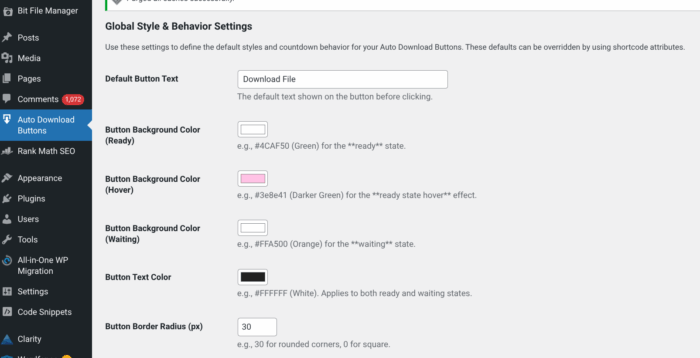
This section manages the core look, feel, and functionality defaults for all buttons.
| Field Name | Description | Placeholder / Example Default |
| Default Button Text | The initial text for the button (CTA) before a click. | Download File |
| Button Background Color (Ready) | The background color of the button when it is in its default, ready-to-click state. | #4CAF50 (Green) |
| Button Background Color (Hover) | The background color shown when a user hovers their mouse over the button. | #3e8e41 (Darker Green) |
| Button Background Color (Waiting) | The background color shown while the countdown is active (after click). | #FF9800 (Orange) |
| Button Text Color | The color of the text displayed on the button for all states (Ready, Hover, Waiting). | #ffffff (White) |
| Button Border Radius (px) | Controls the roundness of the button’s corners in pixels. | 5 |
| Default Countdown Time (Seconds) | The standard number of seconds the countdown will run for. | 5 |
| Default Waiting Text | The message that appears on the button during the countdown. | Preparing download in {seconds} seconds... |
2. File Information Flashcard Settings
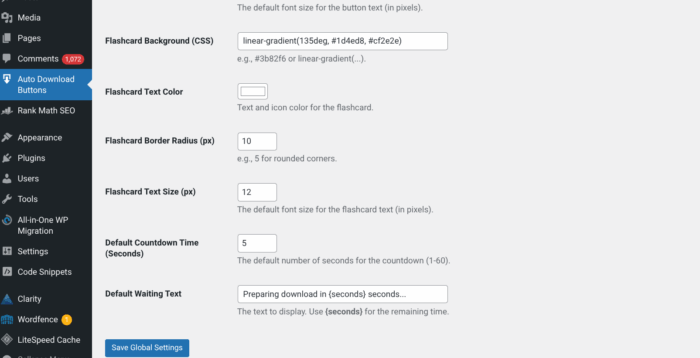
This section controls the appearance of the small, dynamic badge (the “Flashcard”) that appears above the button, which automatically shows the file extension (e.g., DOCX, JPG).
| Field Name | Description | Placeholder / Example Default |
| Flashcard Background Color | The background color of the file extension badge. | #000000 (Black) |
| Flashcard Text Color | The color of the text (file extension) inside the badge. | #ffffff (White) |
| Flashcard Border Radius (px) | Controls the roundness of the badge’s corners in pixels. | 3 |
| Flashcard Font Size (em) | Controls the size of the file extension text in the badge. | 0.85 |
Trick:
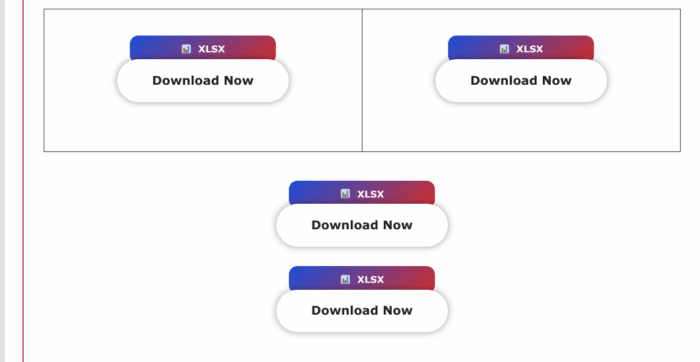
If you want flashcard like this, then use this gradient code in [ linear-gradient(135deg, #1e40af 0%, #e11d48 100%) ] flashcard background box.
Download this plugin from here.
https://wordpress.org/plugins/auto-download-buttons/
Kindly provide your review to us. it will really help us a lot.